Once your 3D assets are published in Imersian, it's time to show them off on your storefront. This guide walks you through adding the 'View in Room' and 'AR' buttons using Shopify’s Theme Editor (Online Store 2.0).
1. Using Shopify App Blocks (Recommended)
This requires no coding and is supported by all Online Store 2.0 themes.
- Access Theme Editor: Go to Shopify Admin → Online Store → Themes → Customize.
- Open Product Page Template: Navigate to the product page template.
- Add Button Block: Inside the editor, insert the Imersian Visualizer and/or AR button block from the App Blocks list on the left menu.
- Position: Drag and place the block where desired. We recommend placing it immediately beneath the Buy button.
- Save and Preview.
⚠️ Note: These buttons will only appear on products that are tagged and enabled for visualization.
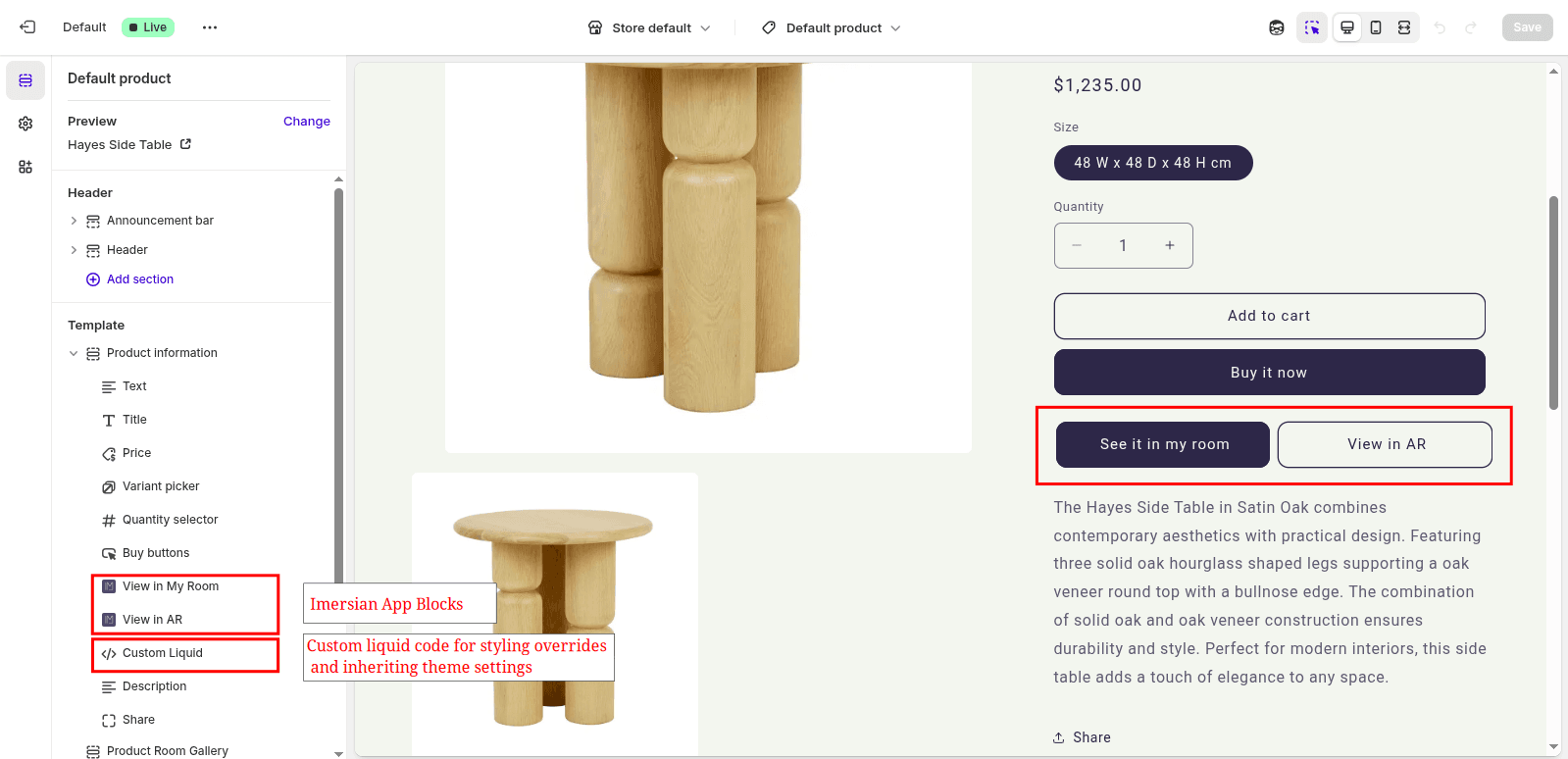
2. Advanced: Theme Customisation
If you want the Imersian buttons to perfectly inherit your theme's native button styles (like rounded corners and colors), you can add a Custom Liquid block below the app blocks.
Create a Custom Liquid block and paste the following snippet:
<script>
document.addEventListener('DOMContentLoaded', () => {
  const selectors = ['.imersian-view-in-room', '.imersian_inhome'];

  function waitForElements(selectors, timeout = 5000) {
    return new Promise((resolve) => {
      const found = selectors.map(sel => document.querySelector(sel)).filter(Boolean);
      if (found.length > 0) return resolve(found);

      const observer = new MutationObserver(() => {
        const matched = selectors.map(sel => document.querySelector(sel)).filter(Boolean);
        if (matched.length > 0) { observer.disconnect(); resolve(matched); }
      });

      observer.observe(document.body, { childList: true, subtree: true });
      setTimeout(() => { observer.disconnect(); resolve([]); }, timeout);
    });
  }

  waitForElements(selectors).then((buttons) => {
    if (buttons.length === 0) return;
    buttons.forEach(btn => {
      btn.removeAttribute('style');
      const span = btn.querySelector('span');
      if (span) span.style.color = '';
    });
    // Apply theme native button classes here:
    if (buttons[0]) buttons[0].classList.add('button', 'button--primary');
    if (buttons[1]) buttons[1].classList.add('button', 'button--secondary');
  });
});
</script>
(Adjust button--primary to match your theme's specific CSS classes, like btn--primary for Archetype themes).