Imersian Visualizer
Shoppers see your products at true scale in a photo of their own room, with no app to download. A 3D product visualizer for Shopify. Book a demo.
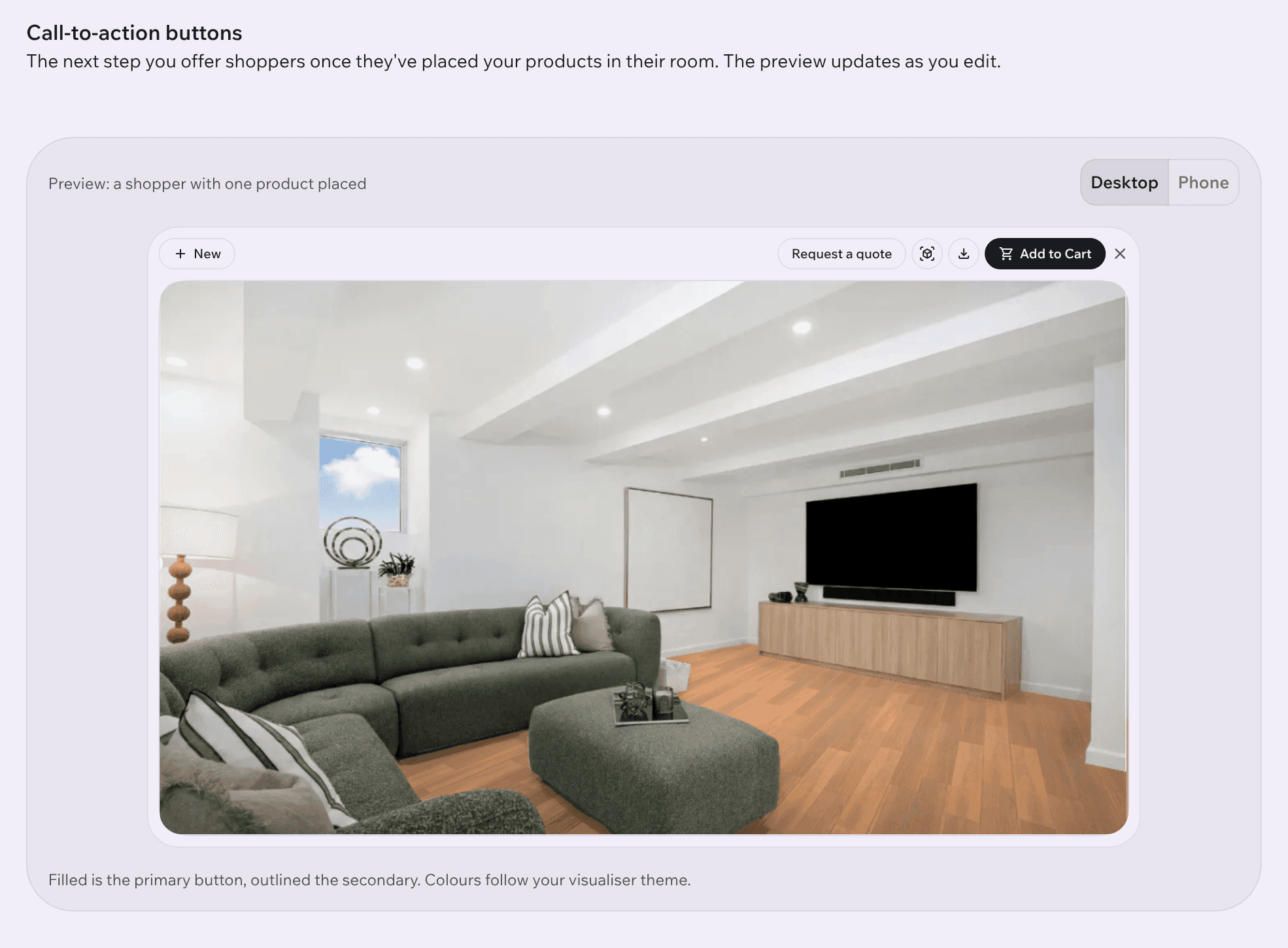
Connect your Shopify store, sync your products and add a View in room button to your product pages, with no theme code. This is the same process our team walks every merchant through.
To install the Imersian Room Visualizer on Shopify: install the Imersian app from the Shopify App Store and approve its permissions; tag the products you want shown with imersianvisualiserenabled; add each product's size to its variant title, for example 160 x 230 cm; let the products sync to the Imersian Portal (daily, or manually); onboard them with the Imersian team, who build a 3D model of each product from your photos; then, in the Shopify Theme Editor, switch on the Imersian app embed and add the Imersian Visualizer block under Add to cart. No theme code is needed. Retailers go live within 2 weeks.
From the Shopify App Store, or from Integration in the Imersian Portal. Approve the permissions.
Add imersianvisualiserenabled to each product you want in the Visualizer.
Size in the variant title with its unit, and one clear photo per variant.
Tagged products sync daily, or straight away with a manual sync.
We build the 3D models from your photos and check sizes and quality.
In the Theme Editor: enable the Imersian embed, then add the Imersian Visualizer block.
Set button labels in the Portal and publish.
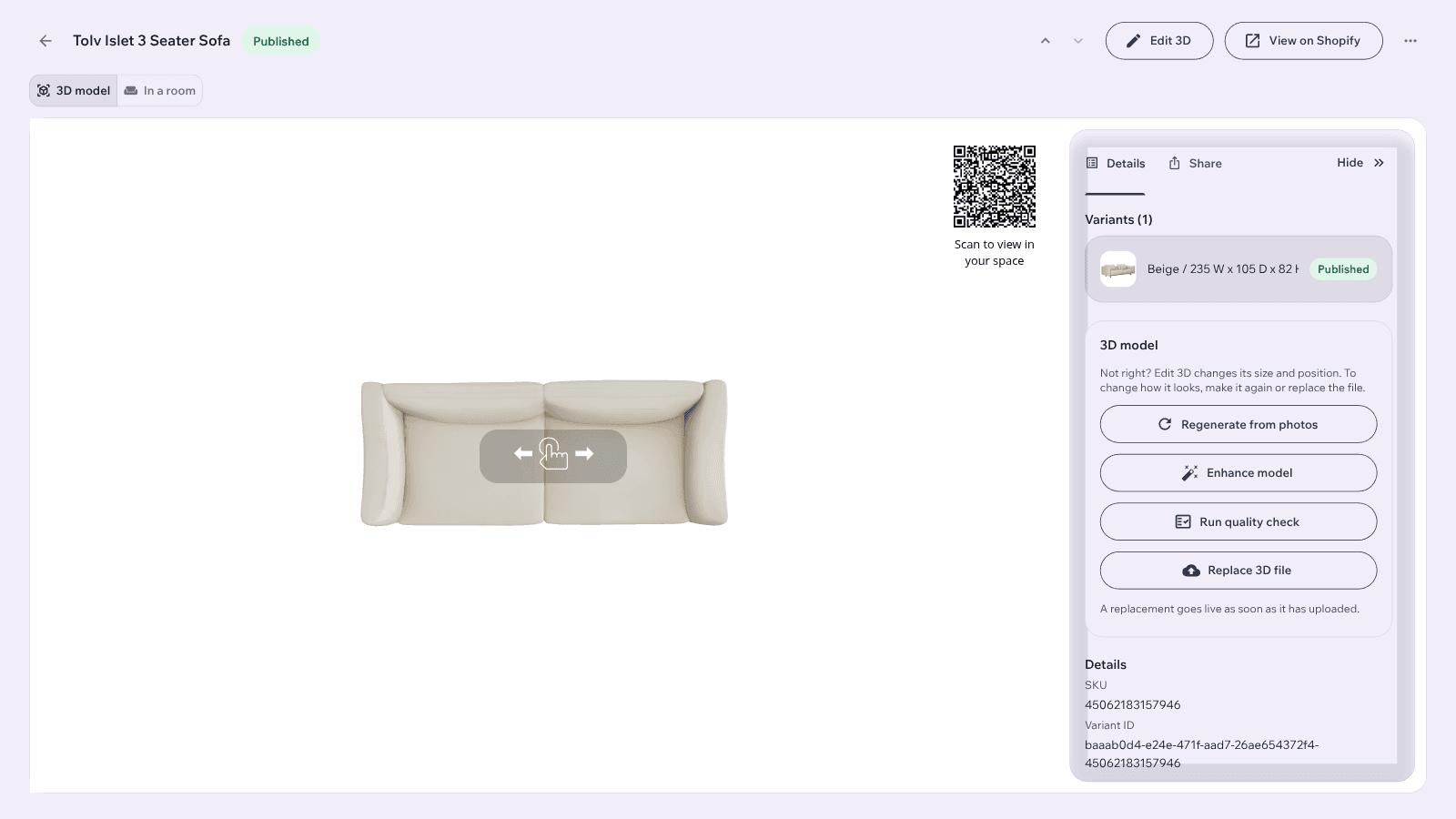
After the sync, every product has its own page in the Imersian Portal with its 3D model and an AR QR code. We build the models from the photos you already have, so there is no 3D work on your side. Rug, flooring, wallpaper, wall art and other flat or surface product models are free.
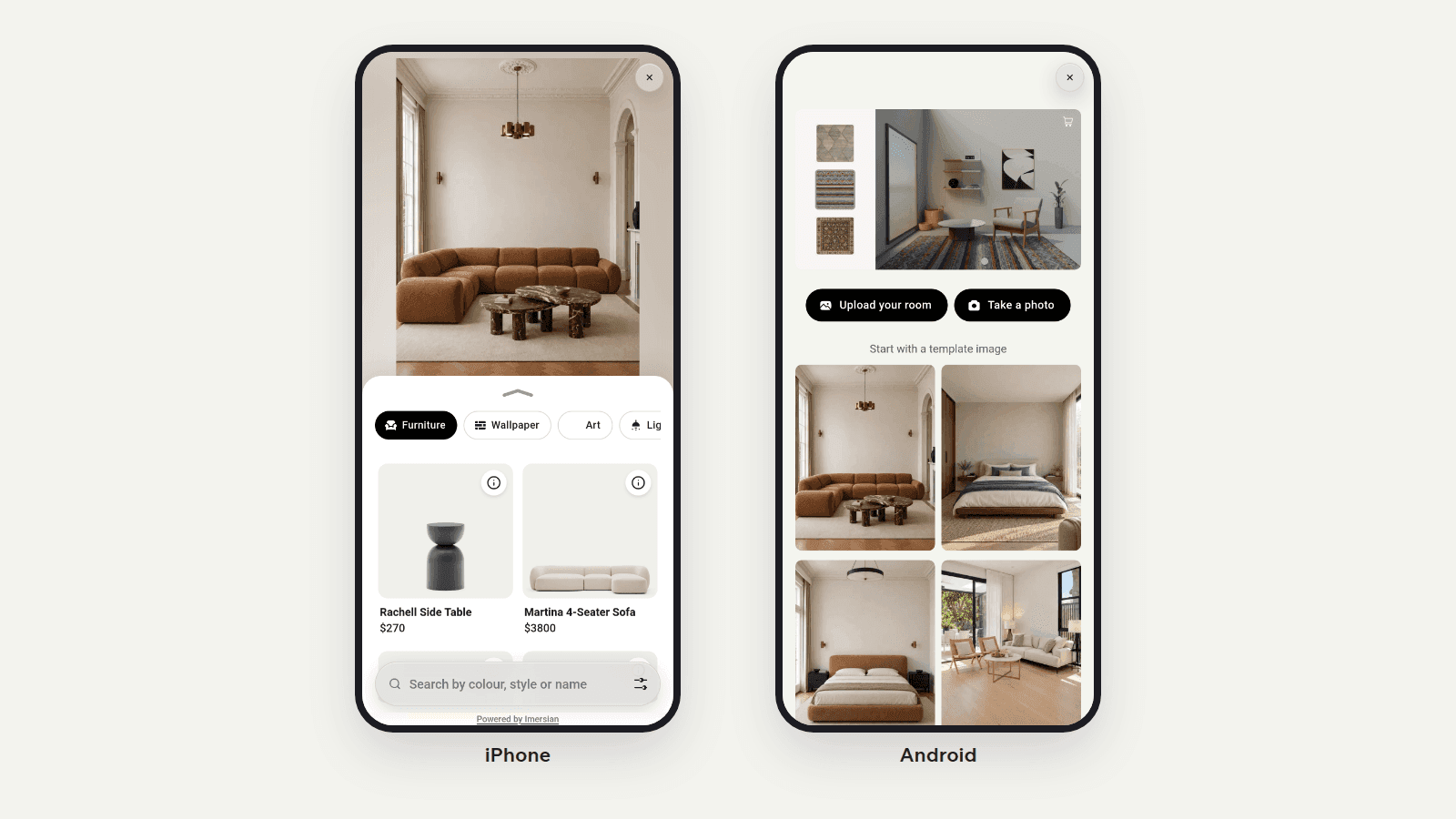
You choose which call-to-action buttons appear and what they say. The button shows only on products that are tagged and live in Imersian. Shoppers tap it, upload a photo of their room and place your product at true scale.
We help every merchant implement the Shopify app, check page speed and onboard their products.
You need a Shopify store with an Online Store 2.0 theme, admin access to install apps, and product photos and sizes for the products you want shown. You do not need to supply 3D models: Imersian builds a 3D model of every product shown in the Visualizer. Rug, flooring, wallpaper, wall art and other flat or surface product models are free; AI 3D models of furniture and home decor use credits, or you can upload your own GLB files.
Scale is everything in a room visualizer, so each product needs its real size. Imersian reads it from your variant titles and product descriptions.
For photos, use one clear image per variant: rugs top-down, wall art straight on, furniture at a slight angle, on a white or plain background, with the whole product in frame and no props, watermarks or lifestyle scenes. If you only have lifestyle shots, Design Studio in the Portal can create clean product images from them.
To choose exactly which photo Imersian uses, open that image in Shopify admin and set its alt text to imersianvisualiserimage. If you leave it unset, our team can have the best image picked for you during onboarding.
Once your products are in the Portal, our team onboards them with you. Imersian builds the 3D model of each product from your photos and checks sizes and quality. A one-off onboarding fee applies. Each product's page in the Portal shows its 3D model and an AR QR code, and you can replace a model with your own GLB file at any time.
The Imersian app adds a Shopify theme app extension, so there is no Liquid to edit and uninstalling leaves your theme as it was.
The buttons appear only on products that are tagged and live in Imersian. To match your theme's own button style, our team can help you add a small Custom Liquid block.
In the Imersian Portal, choose which call-to-action buttons shoppers see and what they say, for example See it in my room. Then use Check my storefront on the Integration page: the Portal opens a real product page, the way a shopper sees it, and confirms the Visualizer is live. Retailers go live within 2 weeks.
Imersian also works on custom and headless stores. Choose Custom (Headless) on the Integration page and our team will help you add the script and product identifiers.
Last updated
Open the Imersian listing on the Shopify App Store, click Install and approve the permissions. You can also start from the Imersian Portal: go to Integration, then Connect store, choose Shopify and click Install. Then tag your products, let them sync and turn on the app embed in the Theme Editor.
Only products with the tag imersianvisualiserenabled. Tagged products sync once a day automatically, and you can sync one product or all of them manually from the Integration page.
No. The Imersian app adds a Shopify theme app extension: you switch on the Imersian app embed and add the Imersian Visualizer block in the Theme Editor of an Online Store 2.0 theme. If you uninstall the app, Shopify removes the extension.
No 3D work is needed on your side. Imersian builds a 3D model of every product shown in the Visualizer from your existing photos. Rug, flooring, wallpaper, wall art and other flat or surface product models are free; AI 3D models of furniture and home decor use credits, or you can upload your own GLB files.
Put the size in the variant title or description with its unit, for example 120 x 180 cm for a rug or 80 W x 45 H x 60 D cm for furniture. If you don't want sizes on your store, override them in the Imersian Portal.
Check that the product is tagged imersianvisualiserenabled, has synced and is live in the Portal, and that the Imersian app embed is switched on in the Theme Editor. If it still doesn't show, contact our team.
Retailers go live within 2 weeks. Our team onboards your products with you, and the main thing we need from you is your product photos and sizes.
Shoppers see your products at true scale in a photo of their own room, with no app to download. A 3D product visualizer for Shopify. Book a demo.
Add a flooring visualizer to your store. Shoppers see hardwood, vinyl, tile and carpet across their own room from one photo. No app. Live in less than 48 hours.
Furniture visualizer for Shopify retailers. Shoppers place your sofas and tables at true scale in their own room. AI 3D Creator makes the models.