Welcome to the Imersian Portal! This guide covers how to connect your store, tag products correctly, and start synchronising your products for 3D generation.
Connecting Your Store
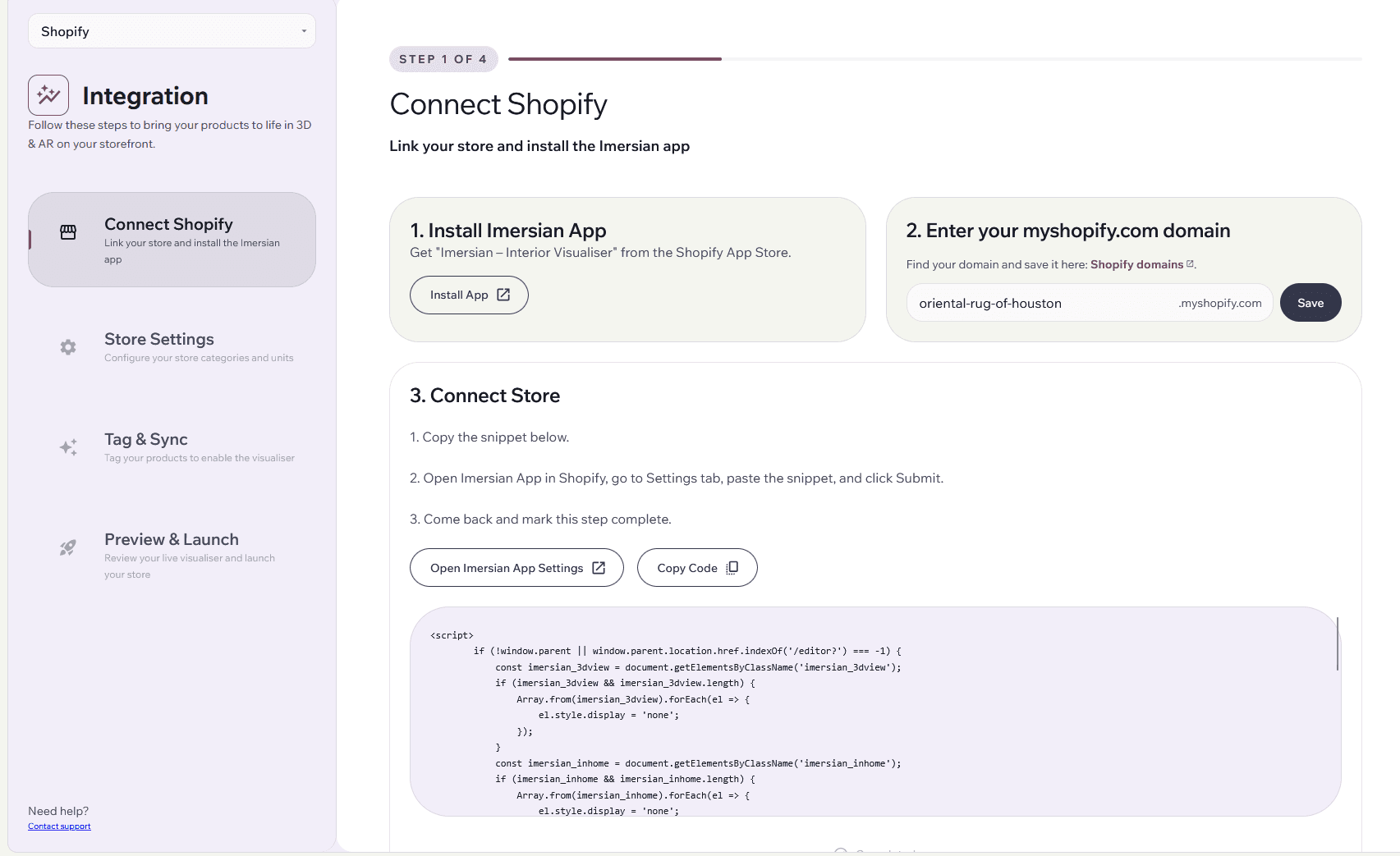
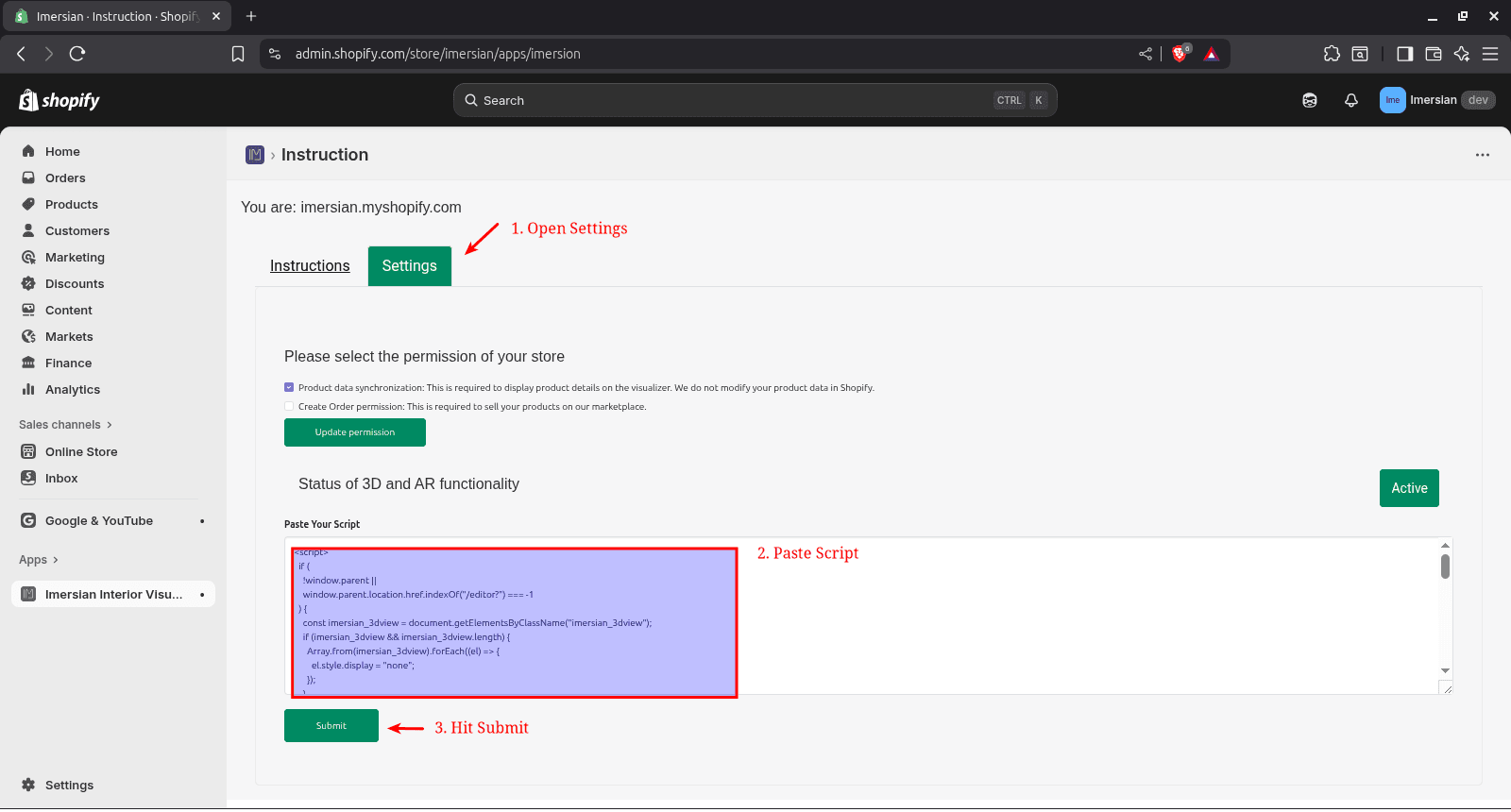
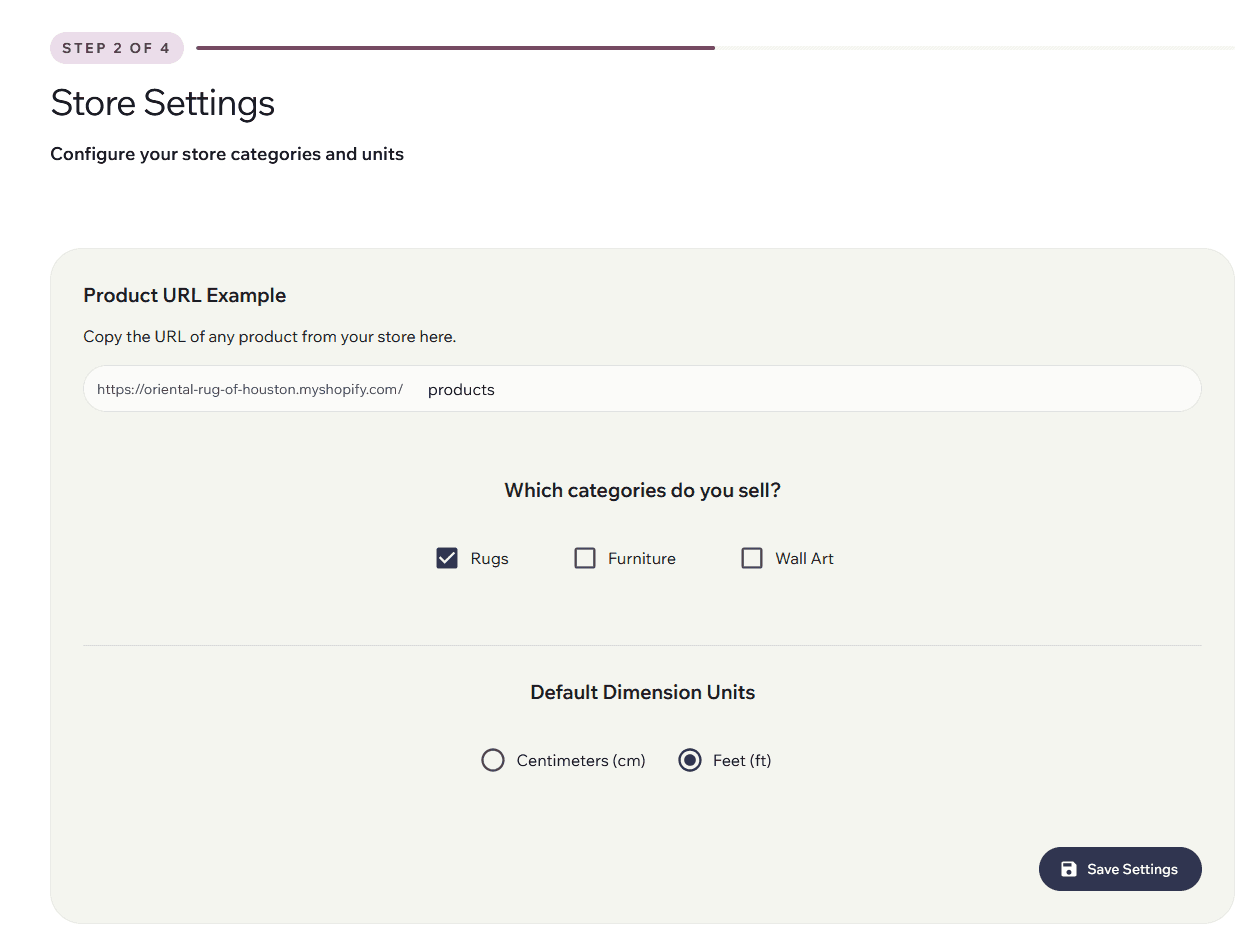
The Imersian Product Synchroniser connects directly to your Shopify store. Once connected, it automatically detects your products and prepares them for Augmented Reality (AR) visualization.
Tagging Products for Sync
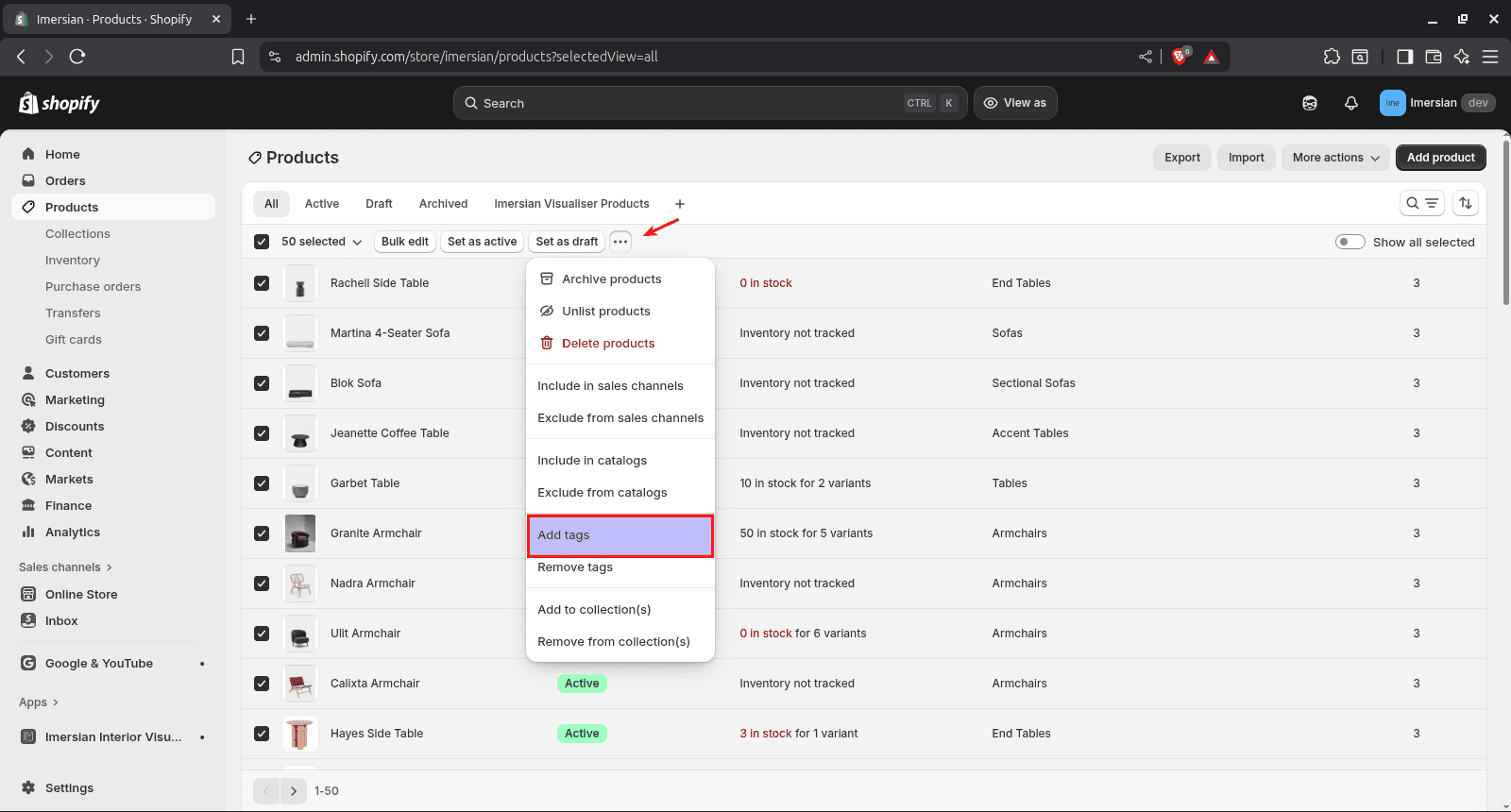
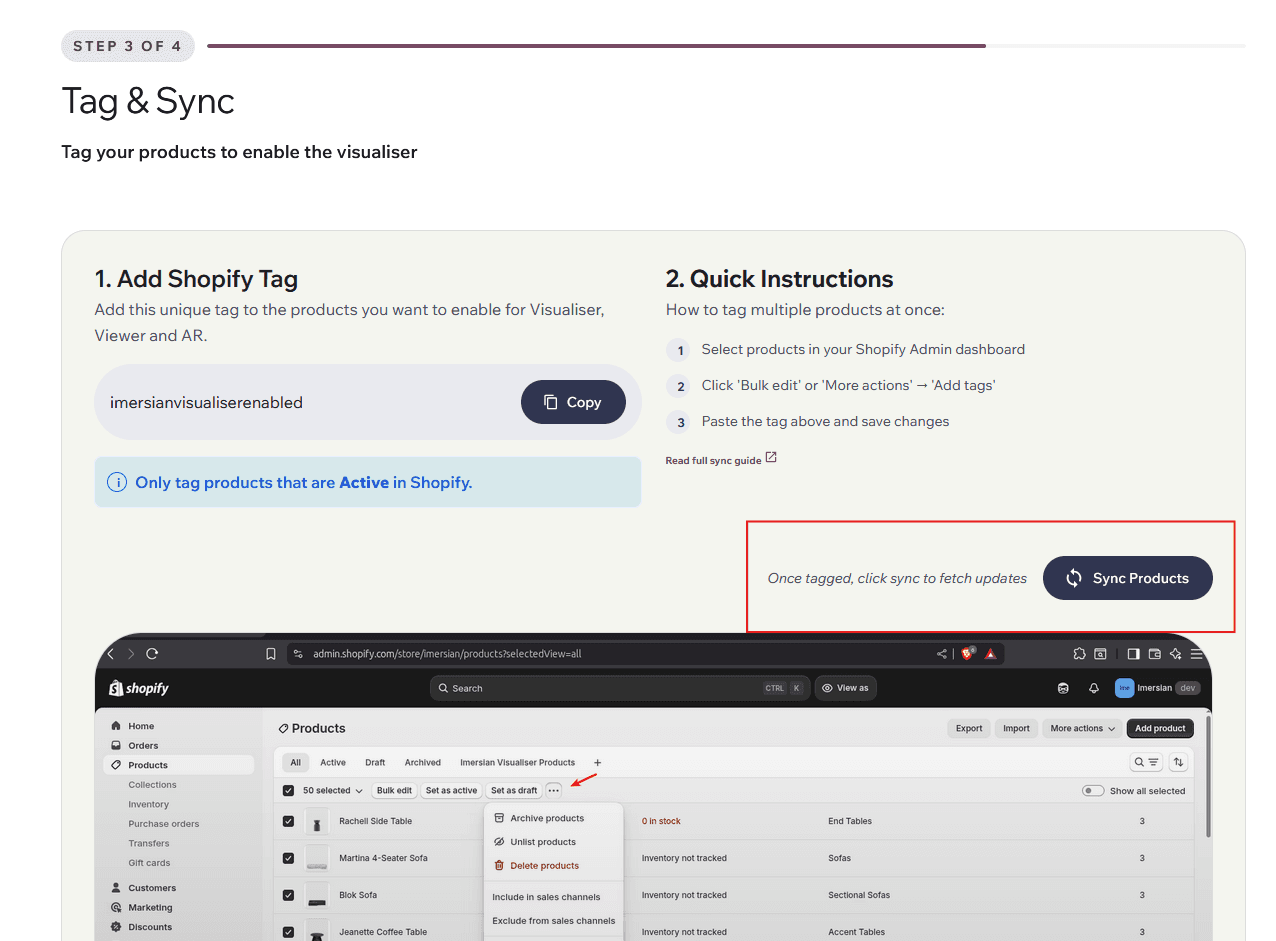
To ensure smooth auto-extraction, please ensure your Shopify products have the following tag:
imersianvisualiserenabled
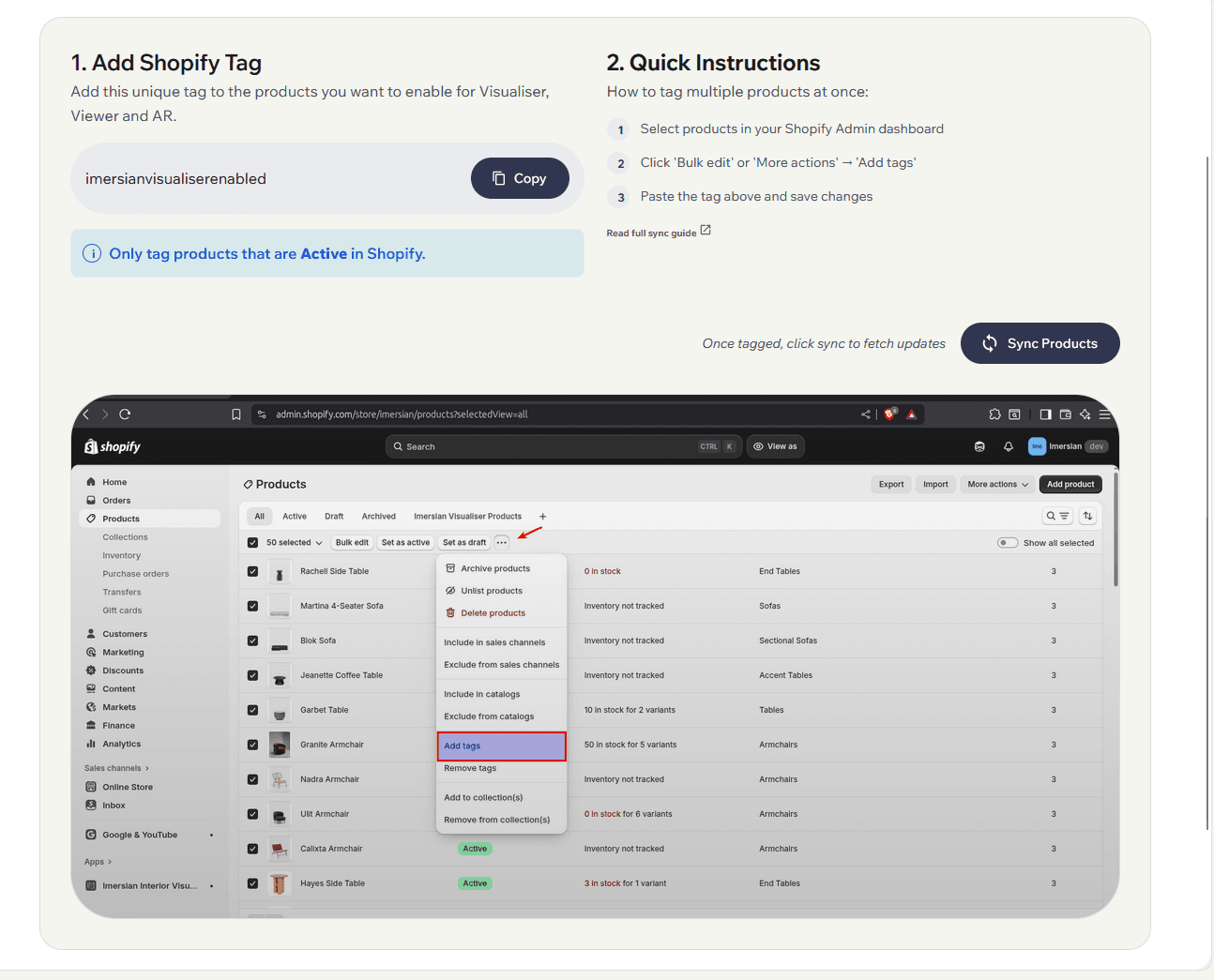
Important: The synchroniser will only pick up products that have this tag.
Formatting Dimensions in Shopify
In 3D visualization, scale is everything. Our AI automatically scans your Shopify Product Descriptions and Variant Titles to extract size information. For best results, format your data as follows:
For Rugs & Variants (Best Practice)
- Include the size directly in the Variant Title.
- Format:
120 x 180 cm
For Furniture (Single Items)
- Include the dimensions in the Variant Title or Product Description.
- Format:
80 W x 45 H x 60 D cm - Note: Always ensure you include the unit label (cm, mm, or ft).
If you do not wish to display sizes publicly on your store, you can manually set or override sizes inside the Imersian Portal after the sync.
How Syncing Works
Products are pulled from your Shopify store in one of three ways:
- Automatic Daily Sync — The system runs daily (at 2:00 AM AEST) and automatically picks up any new or changed products.
- Manual Sync — You or your team can trigger a sync manually from the Integration page for a single product or all products.
- On-Demand Processing — Specific products can be re-processed if something needs to be retried or updated.